On This Page
The Leadpages Zapier integration sends your leads to thousands of other apps automatically. When someone submits a form on a Leadpages page or pop-up, Zapier's "New Form Submission" trigger fires instantly, and your Zap can add the lead to a CRM, a Google Sheet, a Slack channel, a calendar tool or almost anything else. Zapier is available on every paid Leadpages plan.
It's most useful when you need a tool that isn't a native Leadpages integration, or when one lead needs to go to several places at once.
When to Use Zapier
- Your tool isn't a native Leadpages integration.
- One lead should go to several apps.
- You need filters or conditions, such as routing by service type.
- You want instant notifications for your team.
How It Works
Zapier connects apps with "Zaps." Each Zap has a trigger (something that happens) and one or more actions (what Zapier does next).
| Trigger | When It Fires | Typical Use |
|---|---|---|
| New Form Submission | A visitor submits a form on a page | Send lead details to other apps |
| New Lead | A new lead is added | Sync contacts to a CRM or list |
Setting Up Your First Zap

- Create a Zapier account and start a new Zap.
- Choose Leadpages as the trigger app and select "New Form Submission."
- Connect your Leadpages account and pick the form.
- Submit a test lead on your page so Zapier can see sample data.
- Add an action app, such as Google Sheets or your CRM, and map the fields.
- Test and turn on the Zap.
Useful Workflows
Lead to Google Sheets
Log every lead with date, source and form name for simple reporting.
Lead to Slack
Notify your sales team instantly when a quote request comes in.
Lead to CRM
Create or update a contact in tools that aren't native integrations.
Lead to SMS
Send a text confirmation or alert through an SMS app.
Lead to Task Manager
Create a follow-up task for the person who handles new inquiries.
Lead to Several Tools
Add the lead to your email list and CRM at the same time.
Example: A Home Services Company
A quote form on a Leadpages page triggers a Zap that adds the lead to the company's CRM, posts a message in the sales Slack channel with the job type and postcode, and adds a row to a weekly reporting sheet. The team responds faster, and nothing gets lost in an inbox.
Capture leads on fast, mobile-friendly pages and send them anywhere with Zapier. Zapier and email integrations are included on every Leadpages plan.
Try LeadpagesNative Integration or Zapier?
Leadpages connects directly to many tools, including Mailchimp, Klaviyo, ActiveCampaign, Kit and HubSpot. Native integrations are usually simpler and don't need a separate subscription.
| Factor | Native Integration | Zapier |
|---|---|---|
| Setup | Inside Leadpages | Separate Zapier account |
| Cost | Included in your plan | Free tier for simple use; paid plans for more tasks |
| Number of apps | Main email, CRM and ad tools | Thousands of apps |
| Multiple destinations | One of each type per form | Many actions in one Zap |
| Conditions and filters | Limited | Flexible |
Leadpages also limits the number of active integrations by plan: 5 on Pro, Business and Grow, 10 on Optimize and 25 on Enterprise. Zapier can help you connect more tools without using up native integration slots. Our Leadpages integrations guide lists native options by plan.
Webhooks: The Alternative
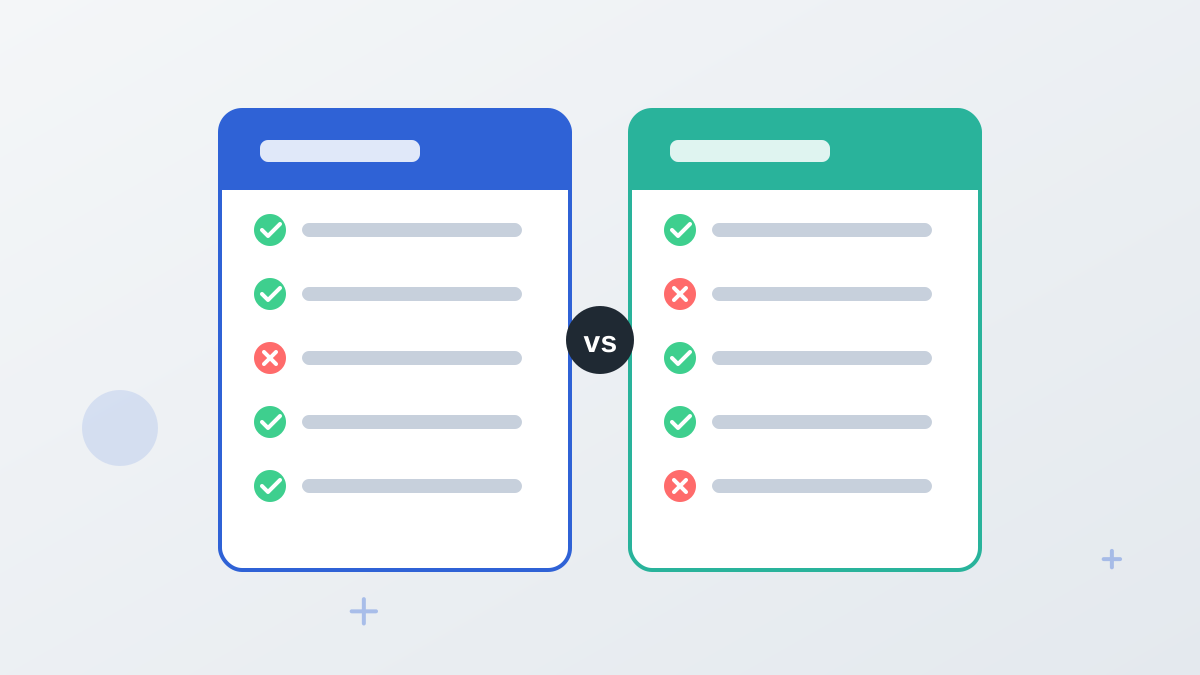
Every Leadpages plan includes webhooks, which send form data to a URL you choose. If you have a developer or a tool that accepts webhooks, this can replace Zapier for simple tasks and avoids another subscription.
Routing Leads With Filters and Paths
Zapier filters let a Zap continue only when a condition is met. Paths let one Zap send leads down different routes.
| Condition | Action |
|---|---|
| Service = "Emergency" | Send an SMS alert to the on-call technician |
| Company size over 50 | Create a deal in the CRM and notify sales |
| Country = "UK" | Add to the UK email list |
| Form = "Webinar March" | Add to a webinar platform and send a calendar invite |
Keep routing rules simple and documented, so anyone on your team can understand where a lead went.
Troubleshooting Zaps
- Zap didn't trigger: check the Zap is on, the correct form is selected and the Leadpages connection is still authorized.
- Fields missing: submit a fresh test lead and remap the fields in Zapier.
- Duplicates: check whether a native integration and a Zap are both sending the same lead.
- Errors in Zap history: read the error message; many are caused by required fields in the destination app.
Costs to Plan For
Zapier counts each successful action as a task. A Zap with three actions uses three tasks per lead. Estimate your monthly leads multiplied by actions per Zap to choose the right Zapier plan.
Tips for Reliable Zaps
- Name your forms clearly so you can pick the right one in Zapier.
- Map fields carefully, especially phone numbers and custom fields.
- Add filters to route different services or locations to different people.
- Check Zap history after launch to catch errors early.
- Keep the native email integration for list sign-ups and use Zapier for extras.
Leadpages Zapier Integration FAQs
Does Leadpages work with Zapier?
Yes. Leadpages supports Zapier on every paid plan, with triggers such as New Form Submission.
Do you need a paid Zapier plan?
Zapier has a free tier for core features. Multi-step Zaps and higher task volumes need a paid Zapier plan.
Can Zapier send one Leadpages lead to several apps?
Yes. A single Zap can include several actions, such as adding the lead to a CRM and a spreadsheet.
What's the difference between Zapier and webhooks?
Zapier connects apps without code. Webhooks send form data to a URL you specify, which usually needs a developer or a tool that accepts webhooks.
Should you use Zapier instead of native integrations?
Use native integrations where they exist, and Zapier for tools Leadpages doesn't connect to directly.