On This Page
An app landing page should explain what the app does and who it's for in one headline, show the app with real screenshots or a short video, highlight three or four key benefits, add genuine ratings or reviews, and put clear App Store and Google Play buttons where visitors can't miss them. For desktop visitors, add a QR code or a "text me the link" option, since they can't install directly from their computer.
Before launch, the same page can collect waitlist sign-ups so you have an audience ready on release day.
The App Page Checklist
- Benefit-focused headline
- Store badges above the fold
- Real screenshots or a short demo
- Three or four key benefits
- Genuine ratings or reviews
- QR code or SMS link for desktop visitors
- Privacy and support links
Why Use a Landing Page Instead of the Store Listing?
Store listings use a fixed layout and show similar apps nearby. A landing page lets you tell your story, match the message of your ads, reach people searching on the web rather than in the store, and collect emails before launch.
| Factor | Landing Page | App Store or Google Play Listing |
|---|---|---|
| Layout and messaging | Fully yours | Fixed fields and format |
| Competitors nearby | None | Similar apps shown |
| Web search visibility | Yes | Mainly store search |
| Email capture | Yes | No |
| Install | Links to the store | Direct |
Sections to Include
Headline and Visual
Lead with the outcome: "Plan a Week of Healthy Dinners in Ten Minutes." Show the app on a phone screen beside the headline.
Benefits, Not a Feature List
Pick the three or four benefits that matter most and pair each with a screenshot.
Proof
Use genuine store ratings and reviews, press mentions you can link to, or partner logos you have permission to use. Never show ratings you can't verify.
Download Options
Use the official store badges, linking to your listings. On desktop, show a QR code or offer to email or text a download link.
Build app pages and pre-launch waitlists with mobile-first templates, and test which headline drives more installs. Try Leadpages for 7 days.
Try LeadpagesPre-Launch and Waitlist Pages
Before release, swap the store buttons for a waitlist form. Offer early access, a launch-day reminder or a beta invitation. Our coming soon page guide covers what to include.
Example: A Budgeting App Launch
Six weeks before launch, the team runs social ads to a waitlist page showing three screens and the headline "See Where Your Money Goes, Without Spreadsheets." Sign-ups get a beta invite and a launch-day email with store links. After launch, the same page switches to store badges and genuine early reviews.
Tracking Installs From Your Page
Clicks on store badges are easy to track on your page, but installs happen in the store. Use your app store analytics, campaign links supported by the stores, or a mobile measurement tool to connect web campaigns to installs. Track badge clicks as a conversion on the landing page so you can compare pages and ads.
Writing App Screenshots and Captions
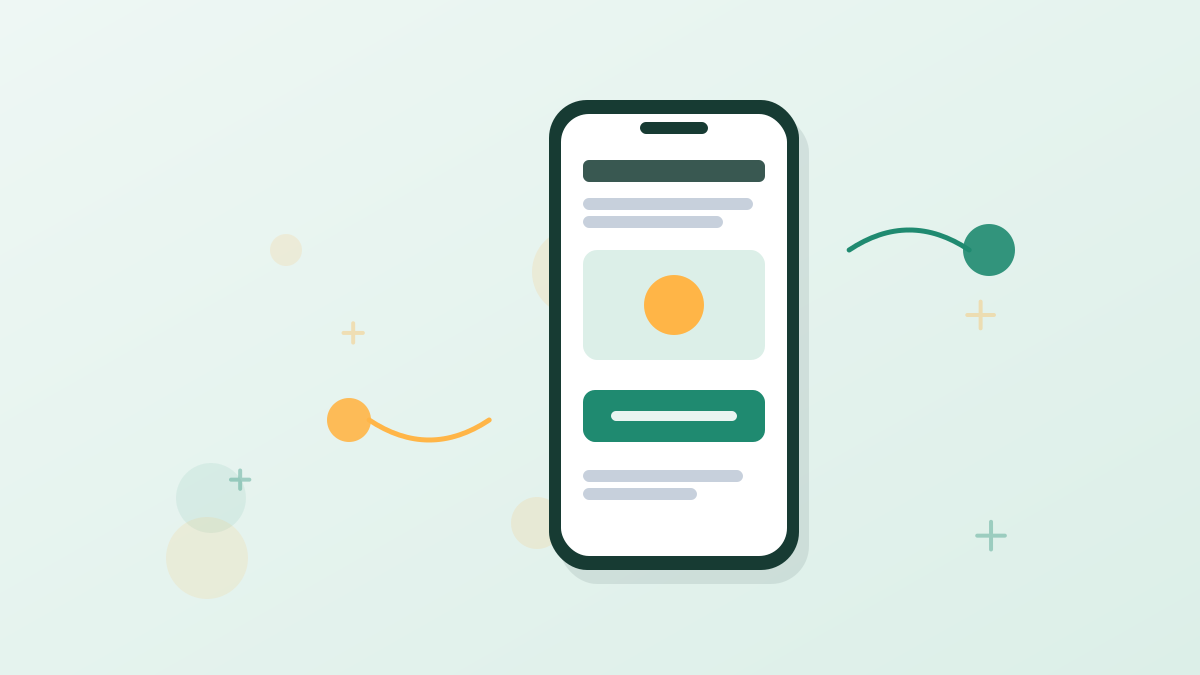
Screenshots work best when each one tells a single benefit. Add a short caption above or below each image, written as an outcome rather than a feature name.
| Feature | Weak Caption | Stronger Caption |
|---|---|---|
| Expense categories | Categories | See exactly where your money goes |
| Shared budgets | Sharing | Plan spending together with your partner |
| Reminders | Notifications | Never miss a bill again |
| Reports | Charts | Spot spending habits in seconds |
Use real screens from the current version of your app. Outdated or mocked-up screens that don't match the app create disappointment after install and can lead to poor reviews.
Pages for Different Audiences
If your app serves several audiences, build a page for each major campaign. A fitness app might have one page for beginners and another for runners training for a race. Each page leads with the benefit that matters most to that group and shows the screens they'll use first.
Supporting Pages Worth Having
Feature Pages
A page for each major feature people search for.
Comparison Pages
Honest comparisons with alternatives users consider.
Help and FAQ
Answers to setup and billing questions, which also reassure new users.
Privacy Page
Clear information on what data the app collects, which store listings and many users expect.
Mobile First, Always
Most visitors will arrive on phones, often from social ads. Keep the page light, put the store button on the first screen and make sure it detects the visitor's device when possible, showing the right store first. Our mobile landing pages guide covers speed and layout.
App Landing Page FAQs
What should an app landing page include?
A benefit headline, store badges, screenshots or a demo, key benefits, genuine reviews, a desktop QR code or link and support details.
Why not send ads straight to the app store?
You can, but a landing page lets you match the ad's message, reach web searchers and collect emails before launch.
How do desktop visitors download a mobile app?
Show a QR code or offer to send the link by email or text so they can open it on their phone.
Can you build an app landing page with Leadpages?
Yes. Leadpages templates suit app pages and waitlists, with forms and tracking for badge clicks.
How do you track app installs from a landing page?
Track store button clicks on the page and connect campaigns to installs with store analytics or a mobile measurement tool.